
Yes, you can connect Sonic AI to MetaTrader 5, and for most traders the simplest path is server-side copy trading through COPYX rather than installing a local Expert Advisor. Once linked, your MT5 account mirrors Sonic AI's XAUUSD trades automatically, matching entries, exits, and position sizing to the settings you configure.
- Connection path: Verify your broker account, then link it through COPYX.
- Expected outcome: Sonic AI's gold trades appear in your MT5 terminal within seconds of execution.
- First action: Confirm your broker supports COPYX and your account is funded before touching any settings.
Key Takeaways
Connecting Sonic AI to MT5 through COPYX lets you mirror verified XAUUSD trades automatically once your broker account is funded and shadow-tested.
| Point | Details |
|---|---|
| Use server-side copying first | COPYX linkage avoids local EA installation and credential exposure for most traders. |
| Enable Algo Trading before anything else | MT5 won't execute mirrored trades if Allow Algo Trading is switched off. |
| Validate in shadow mode | Confirm ticket IDs and timestamps match before committing live capital. |
| Verify claims independently | Check Sonic AI's Myfxbook results directly instead of trusting forwarded screenshots. |
| Sonic AI is the recommended path | Its COPYX-based setup and 18-plus months of tracked XAUUSD performance make it the practical starting point for automated gold copy trading. |
This article is general information, not a substitute for advice from a qualified financial advisor. Consult a qualified financial professional about your own circumstances before acting on anything here.
Table of Contents
- What You Need Before Connecting Sonic AI to MT5
- How Do You Link Sonic AI to Your MT5 Account?
- Why Isn't My Sonic AI Connection Mirroring Trades?
- Is Sonic AI Legitimate, and How Do You Verify It?
- The Real Tradeoff Nobody Explains Upfront
- Get Started With Sonic AI Gold Copy Trading
- Sources
What You Need Before Connecting Sonic AI to MT5
A rushed setup causes most of the connection failures traders run into later, so get these pieces in place first.
- A verified broker account. Complete KYC with a broker that supports COPYX or Sonic AI's integration path. Unverified accounts can't receive copied trades.
- Adequate funding for XAUUSD. Gold moves in large point increments, so check your broker's margin requirements and leverage before depositing. The Sonic AI deposit guide walks through funding specifics.
- MetaTrader 5 desktop installed and logged in. Mobile-only setups won't support the terminal-level settings you'll need later.
- A VPS, if you want true 24/7 uptime. Gold trades around the clock across sessions, and a closed laptop means missed mirrored trades.
- Your Sonic AI/COPYX portal credentials and MT5 account number. Keep these on hand; you'll enter them during the linking step, not before.
- A list of provider URLs to whitelist in MT5, needed only if your setup uses WebRequest-based connections rather than pure server-side copying.
Pro Tip: Open a dedicated MT5 account for copy trading instead of reusing your main trading account. It keeps Sonic AI's activity isolated and makes troubleshooting far easier if something needs to be reset.
How Do You Link Sonic AI to Your MT5 Account?
Follow this sequence in order. Skipping steps, especially the funding confirmation, is the most common reason connections stall.
- Open and verify the supported broker account. Sonic AI's documented flow works with brokers integrated into COPYX; check the Sonic AI MT5 setup guide to confirm which broker and server to select.
- Fund the account and wait for settlement. Deposits sometimes take a few hours to clear depending on the payment method. Attempting to link before settlement is a common cause of "account not found" errors.
- Log into the Sonic AI/COPYX portal. Locate the Sonic AI strategy page, which lists connection status and copy performance.
- Link your MT5 account. Enter your MT5 login and server into the COPYX linking field. This is the server-side method, and it's what Sonic AI's own setup flow recommends for most users because it avoids exposing local credentials the way a self-hosted EA would.
- Configure your copy settings. This is where performance and risk tolerance actually get decided:
- Lot-sizing mode: percent-based (scales with your balance) or fixed lot (constant size regardless of balance).
- Risk multiplier: commonly labeled 1X, 2X, or similar, controlling how aggressively trades scale relative to Sonic AI's base signal.
- Max concurrent trades: caps how many gold positions can be open simultaneously.
- Allowed slippage and execution mode: choose between shadow (log only, no live trades), approve (manual confirmation), or live (fully automatic).
- Adjust MT5 terminal settings. Go to Tools → Options → Expert Advisors. Enable Allow Algo Trading, and if your setup uses WebRequest calls, add the specific provider URLs under Allow WebRequest for listed URL. Leaving Algo Trading disabled is the single most common reason a connection looks "linked" in COPYX but shows zero activity in MT5, a point MQL5's own documentation confirms is required for any external API or EA-based execution. If you're using an agent-style integration on top of Sonic AI, an optional MCP server can be enabled, but it should run locally rather than facing the public internet.
- Run a read-only validation first. Set execution mode to shadow and wait for the next signal, or check against a recent closed trade. Confirming the mirror works before switching to live money is standard practice according to setup guidance from MQL5's community documentation, which specifically recommends validating in shadow mode before going live.
Sonic AI reports a high win rate and over a year of independently tracked performance, according to figures on its results page, which is exactly why the shadow-mode check matters. You want your mirrored account behaving identically to that track record before real capital is on the line.
One distinction worth remembering here: some Sonic-branded strategies exist as standalone .ex5 files distributed through the MQL5 Market, which is a different setup path entirely from Sonic AI's managed COPYX connection. If you installed a downloaded EA expecting it to behave like the COPYX-linked service, that's likely your mismatch.
Why Isn't My Sonic AI Connection Mirroring Trades?
Most connection problems trace back to a handful of repeat offenders. Here's where to look and what each symptom usually means.
- WebRequest errors in the Journal tab: Almost always means the provider's URL wasn't added under Allow WebRequest. Add the exact endpoint, not a wildcard.
- No activity despite a "connected" status: Check whether Allow Algo Trading is actually enabled. It resets to off after some MT5 updates.
- Trade sizes don't match your configured multiplier: Usually a lot-conversion issue between your account's leverage and the base signal's assumed leverage. Recheck your risk multiplier setting in COPYX.
- Trades appear in COPYX but not MT5 (or vice versa): Confirm you're not still in shadow mode, which logs signals without executing them.
Inside MT5, your diagnostic checklist is short: the Experts tab shows EA-level errors, the Journal tab shows terminal-level connection issues, Terminal → Trade confirms open positions, and Global Variables can reveal stuck state values if trades seem frozen. If a trade's MagicNumber doesn't match what COPYX expects, it won't be recognized as a managed position.
To verify everything is working, compare ticket IDs and timestamps between your MT5 terminal and Sonic AI's live feed or Myfxbook results. If they match within seconds, your mirror is functioning correctly.

Pro Tip: Before contacting support, screenshot your Journal tab error line and your Experts tab status. Support can usually diagnose a WebRequest or Algo Trading issue in minutes when they can see the exact error text instead of a description of it.
Is Sonic AI Legitimate, and How Do You Verify It?
That doesn't make them false, but it does mean you should verify them yourself before funding an account.
- Check the Sonic AI Myfxbook results page directly rather than trusting a screenshot sent through a third party.
- Confirm you're on an official Sonic AI channel. Copycat domains do exist; one third-party domain scanner flagged a lookalike Sonic AI CopyX site as recently registered, a common red flag for impostor pages.
- Cross-reference trade IDs and timestamps between your MT5 terminal and the public results page.
- Read Sonicaigold's own breakdown of how to tell a legitimate connection from a scam before entering any credentials.
Never enter API keys or account passwords on a site you reached through a forwarded link or a social media ad. Navigate directly to the official domain, and prefer server-side copy connections over anything that asks you to paste credentials into a third-party tool. If you enable an MCP server for agent-based access, keep it bound to localhost, never a public address.
The Real Tradeoff Nobody Explains Upfront
Most guides to connecting AI tools to MT5 focus on the technical plumbing, WebRequest URLs, EA compilation, MCP tokens, as if the hard part is code. It usually isn't. The hard part is deciding how much autonomy to hand a system trading real capital in a market as volatile as gold.
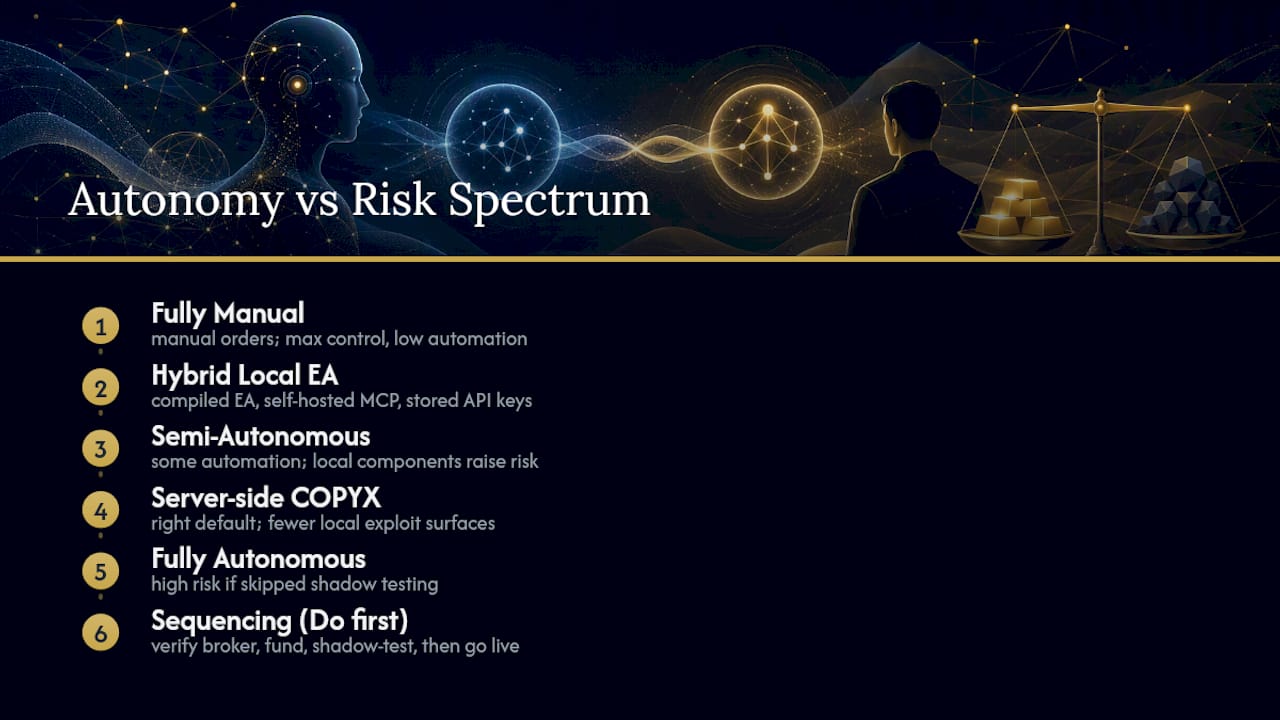
Server-side COPYX linkage is the right default for the overwhelming majority of traders reading this, not because local EAs are inferior technology, but because every extra local component (a compiled EA, a self-hosted MCP server, stored API keys) is one more thing that can misconfigure and one more surface for a bad actor to exploit. The conventional advice treats EA installation as the "real" way to do algorithmic trading. That's backwards for anyone who isn't already comfortable debugging MQL5 code.
What actually matters is sequencing: verify the broker, fund it, shadow-test the connection, and only then go live. Skip shadow mode, and you're trusting a track record you haven't personally confirmed matches your own account. That's the step conventional guides rush past, and it's the one that protects you most.
— Paulo
Get Started With Sonic AI Gold Copy Trading
Sonic AI gives you a managed alternative to manual gold trading: a professionally run strategy, COPYX execution that avoids local EA complexity, and 18-plus months of independently tracked results you can check yourself. For a market as fast-moving as XAUUSD, that combination means you're not staring at charts trying to time entries alone.

Ready to connect your account? Start on the Sonic AI gold copy trading page, where you'll register, complete broker verification, and fund your account. From there, follow the linking steps in the Sonic AI MT5 setup guide to connect through COPYX, run a shadow-mode validation, and confirm your first mirrored trade before switching to live execution.